
Follow Us!

Summary of Changes to Bill Pay
In September 2025, we upgraded the Bill Pay experience within our digital banking platforms. We are here to guide you through it, as well as answer some frequently asked questions. Here’s an overview of how the Bill Pay experience has changed. See what new changes are coming August 27, 2026.
View & Add Payees:
Legacy Experience: Existing payees were listed under My Bills & People, and the option to add a payee was located below it.


New Experience: You can see your payees under the Payees section on the landing page. Informational icons under the payee names show you more information at a glance. Use the search bar to quickly find a payee, and increase the rows per page to view more payees at a time. Payees can be sorted by nickname and due date, and can be easily identified with an additional payment indicator (check or electronic ) informational icon. The nearest payment date for a payee is clearly displayed when automatic reminders are enabled, an eBill was generated, or recurring payments are set up.

The informational tooltip to clearly indicates the relevance of the displayed nearest payment date.

Payees can easily be identified with additional informational icons:
- Eligible for eBills.
- Enrolled in eBills.
- Setup automatic recurring payments.
- Display of nearest payment date for below cases:
- Automatic reminders are enabled.
- An eBill is generated.
- Recurring payments are set up
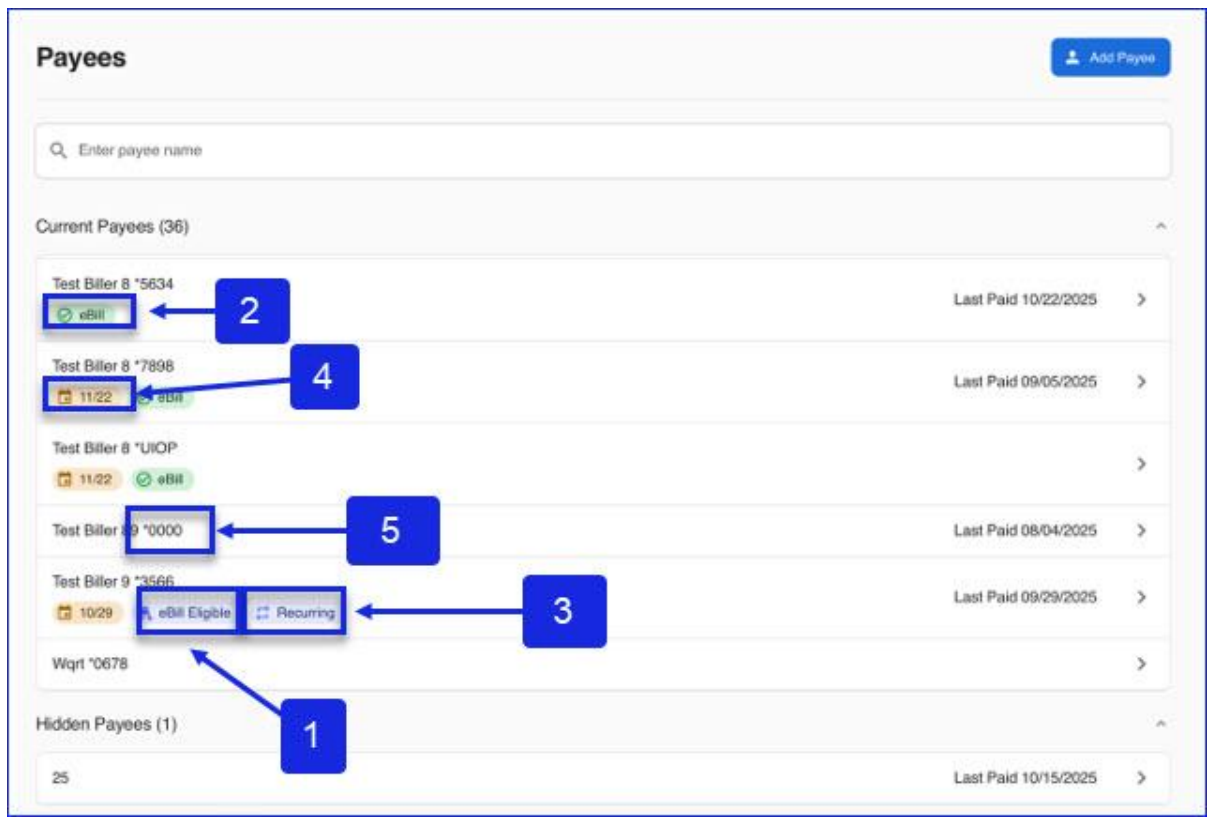

To view payee details, select the payee name. Select the pencil icon to edit the account number, address, or other details for the payee.

You can also view a full list of payees by selecting the Manage tab in the top navigation bar, then selecting Payees.


To add a payee, select the ‘Add Payee’ button located in the top navigation.

View Scheduled Payments & Payment History:
Legacy Experience: Scheduled payments, payment history and recently processed payments were found under My Payments.

New Experience: New sections for eBills and My Payments have been added to the Bill Pay landing page.

My Payments Section

- Scheduled Payments: Showing all scheduled payments for the next 12 months. Click on the 3 dots next to a payment to view and edit payment details or cancel scheduled payments.
- In Process Payments: Showing the 5 in process payments for the last 3 months. Click on the 3 dots next to a payment to view payment details.
- Recently Processed Payments: Showing the 5 recently processed payments for the last 3 months. Click on the 3 dots next to a payment to view payment details.
- View All Payments: By default, the list will display a 90 days view – Previous 60 to Upcoming 30 days, but you can set the search filters to the desired date range. Use the filters to refine your search even further. Select a payment to view payment details and make edits on future payments.

eBills Section
Users can instantly view and pay outstanding balances or navigate to their full eBill history.

A side-drawer opens and the Amount and Payment date fields are pre-filled. If necessary, you can edit the data before submitting the payment. If this payment has been made through a vendor directly, you can select ‘Mark this eBill as paid’.

Schedule New Payment:
Legacy Experience: New payments were made under My Bills & People.
New Experience: New payments can be made under the Payees section. Fill out the payment amount and date fields for a payee to make one payment. Or, fill out the payment amount and date fields for multiple payees and select ‘Pay All’.
More Features
Legacy Experience: Alerts were located under the ‘I want to…’ menu.

New Experience: Alerts are located under the Manage tab in the top navigation. The Manage tab also houses the settings for eBills.
On August 27, 2026, some pages will be updated with a new Pay workflow that opens in a side drawer, replacing the previous multi-page process.
Scheduling a Payment
- Select the Pay button to open the side drawer.

2. Choose a payee to schedule a payment.

3. Enter the payment details and then click the Review Payment button.

4. Review the payment details and if correct, click the Submit button. To make changes to the payment, click the Go back button.
5. Review the confirmation. When finished, click the Close button.
6. To make another payment click the Make another payment button. To make multiple payments at once, you can continue to use Bill Pay Landing Page.
eBills Page
- Select Pay eBill to open the side drawer.

2. Select a payment option from the side drawer. When users select an option in the side drawer, an additional drawer opens to support the next step in the workflow.

3. Enter the payment details and then click the Review Payment button.
4. Review the payment details and if correct, click the Submit button. To make changes to the payment, click the Go back button.
5. Review the confirmation.
Making a Payment from the Payee Details Page
1. Click the Pay button.

2. Enter the payment details and then click the Review Payment button.

3. Review the payment details and if correct, click the Submit button.
4. To make changes to the payment, click the Go back button.
5. Review the confirmation.
Frequently Asked Questions:
-
In the new Bill Pay experience is there a way to see the total of scheduled payments in the payment calendar?
Yes, underneath the top navigation bar is the Payee and Payment Calendar. The payment calendar offers a calendar view or a list view.
-
How do I quickly find my last payment to a particular payee?
Click on the name of one of your payees. Scroll to the bottom of the Payee Details and click on History. Clicking View All Payees (or View All Payments) allows you to perform dynamic searches for specific date ranges or other criteria. Utilize the arrows on the right-hand side of each line item to view more details. Hidden payees will not be shown on the Payees section, but any scheduled payments would be shown in payment calendar.
-
How do I update the address or account number for a payee?
Use the search bar on the Payees section to locate the desired payee. Click on the payee to open the Payee Details and then click on the pencil icon to start editing.
-
How do I view a full list of payees?
Select the Manage tab in the top navigation then select Payees to see all current and hidden payees.
-
How do I view recent payments?
Navigate to the Payment Calendar and select View All Payments, then select the desired date range.