
March 16, 2023
Follow Us!

Update Your Personal Information Via Digital Banking
At Interior Federal, our goal is to provide simplicity and convenience for our members. We upgraded digital banking with My Info, so you can update any personal information on the go without giving us a call. Within My Info, you can update the following for primary owners, joint owners, and beneficiaries:
- Physical and Mailing Address
- Phone numbers (home, cell and work)
- Email Address
- View your account number and routing number
Updating Personal Information
Want to change your account email address to a new email address or update your phone number? You can complete this simply, with the following steps:
Online Banking:
- Login.
- Select My Info in the top navigation.
- Select Personal Information and tap the box under Email, Cell Phone, or Home Phone to start typing.
- Enter the new contact details, the select Update.
Mobile Banking:
- Login.
- Select More at the bottom right of the screen.
- Select My Info under the Account Management & More section
- Select Personal Information and tap the box under Email, Cell Phone, or Home Phone to start typing.
- Enter the new contact details, the select Update.
Settings 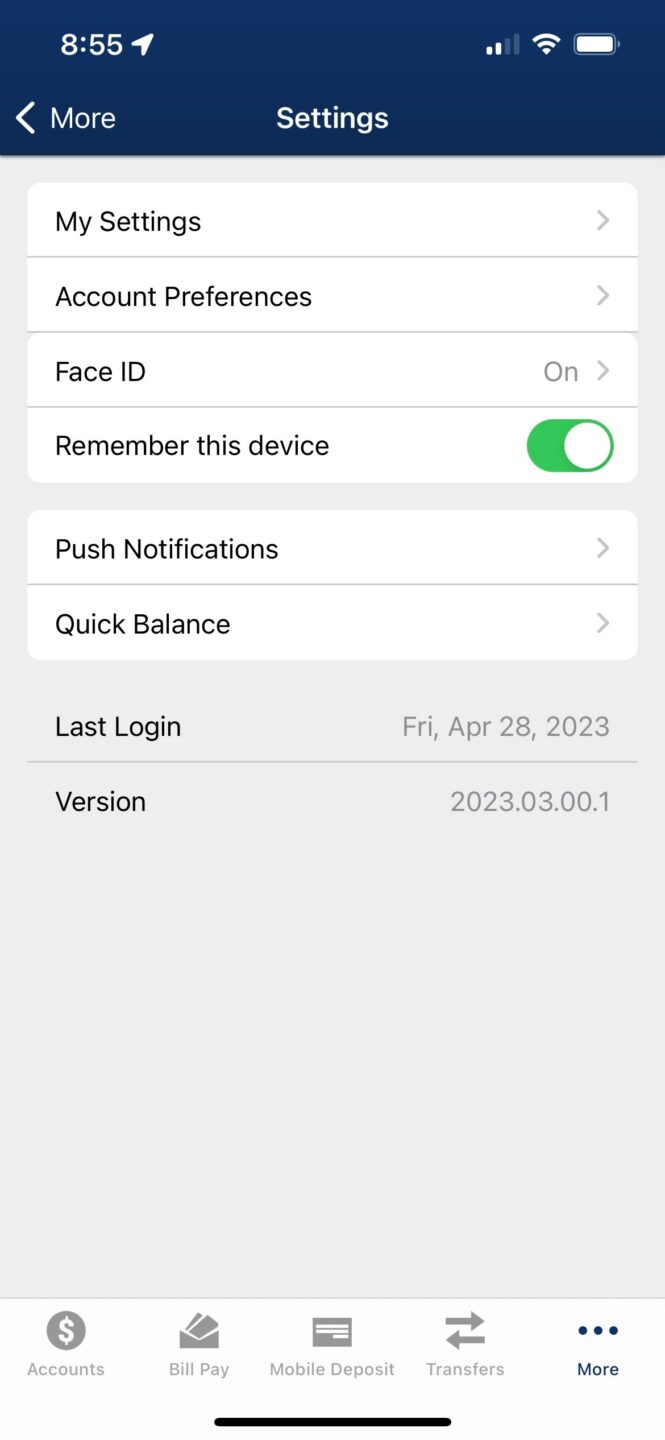
While My Info is where you can update your personal information, My Settings is used to manage your contact information for login security and one-time passcodes.
If you change your cellphone number in My Info, be sure to update it in My Settings as well. Keeping this information current in both places helps ensure you can receive one-time pass codes, security alerts, and other important digital banking notifications. If your contact information in My Settings is out of date, you may experience issues receiving login verification codes or accessing certain digital banking features.
To update contact information for login security and one-time passcodes, visit My Settings, select Edit next to the information you want to update, enter your new details, and select Save.
One key way to protect against fraud is updating your account password often. Here’s how you can do it:
- Login in to digital banking.
- Select My Settings (located within the tool icon in the mobile app).
- Select Edit next to the section you want to update.
- To update your password, enter your current password, then enter a new password for your account. Re-enter the new password you created for confirmation.
- Select SAVE.
Learn more about Settings here.
Related Content: You can use Keeper® with our exclusive member discount to keep all your passwords safe and protect yourself from identity theft.